Here are clear, step-by-step ways to find the MAC address on the most common devices. The MAC address is usually shown as six pairs of letters and numbers (for example: 00:1A:2B:3C:4D:5E).
Windows (Windows 10 / 11)
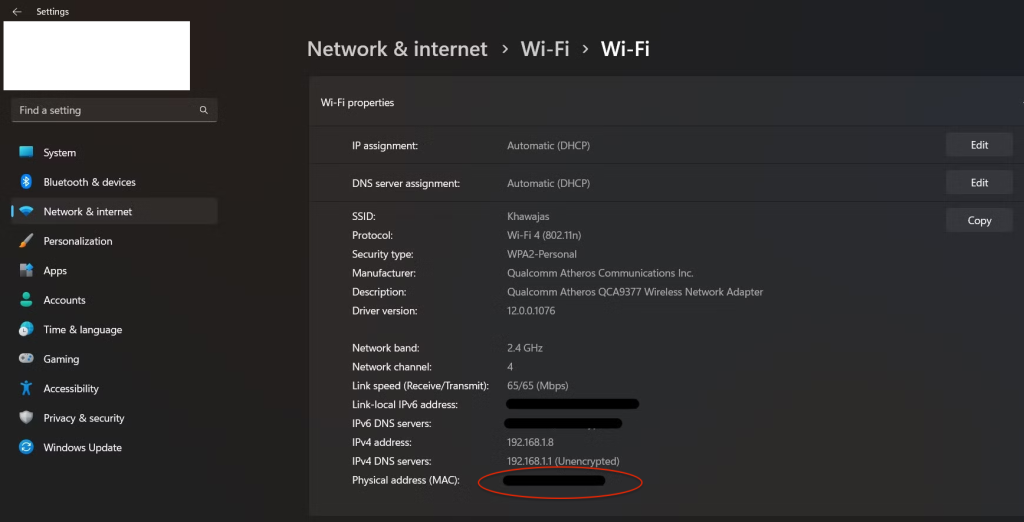
Option 1: Using Settings
- Open Settings
- Go to Network & Internet
- Select Wi-Fi or Ethernet (depending on how you’re connected)
- Click your connected network
- Scroll down to Physical address (MAC)
Option 2: Using Command Prompt
- Press Windows Key + R, type
cmd, press Enter - Type:
ipconfig /all - Look for Physical Address
macOS (MacBook / iMac)
- Click the Apple menu
- Go to System Settings (or System Preferences)
- Select Network
- Choose Wi-Fi or Ethernet
- Click Details or Advanced
- The MAC address is listed as Wi-Fi Address or MAC Address
Android Phone / Tablet
- Open Settings
- Go to About phone (or About device)
- Tap Status
- Look for MAC address
Alternatively (for Wi-Fi only):
- Settings → Network & Internet → Wi-Fi → Tap your connected network
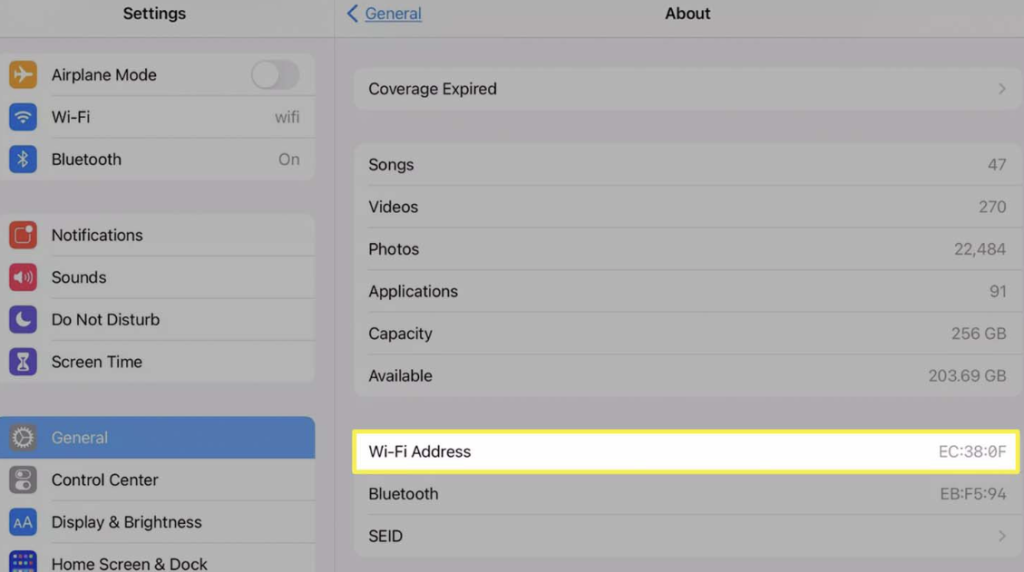
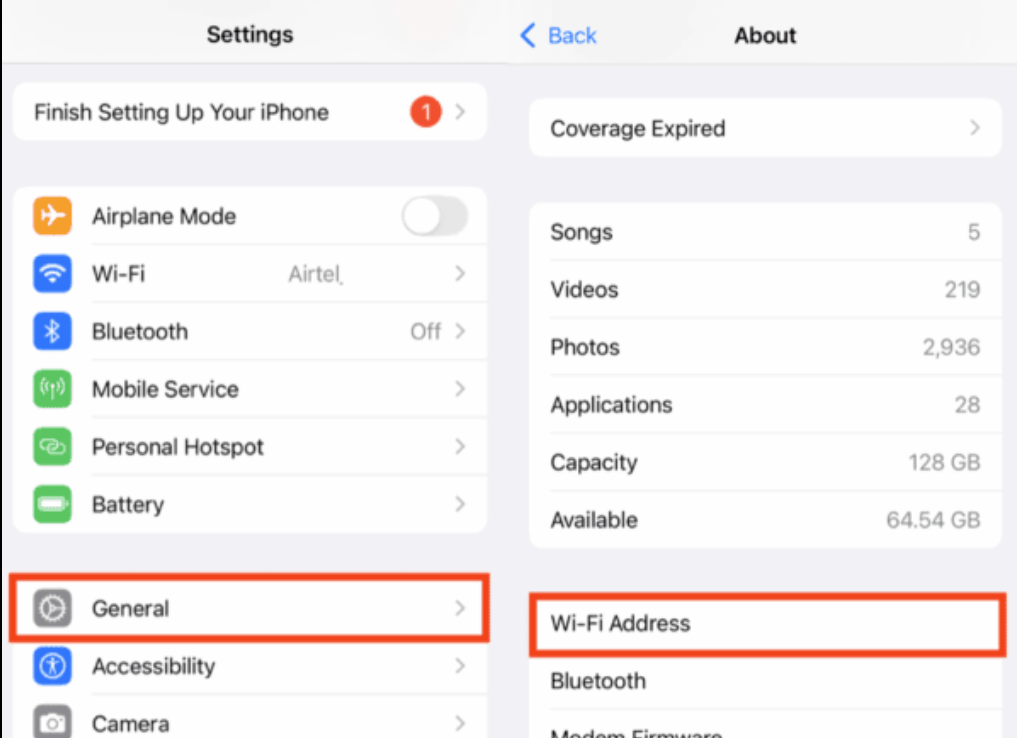
iPhone / iPad (iOS)
- Open Settings
- Tap General
- Tap About
- Scroll down to Wi-Fi Address